

Using the Clipboard
What is the Clipboard?
The Clipboard is one of the most powerful tools in iSoccer.
Think of it as a temporary workspace where you can collect, organise, and customise drills before creating a training plan.
Instead of adding drills directly into a plan, you can first build your session in the Clipboard and then save it as a completed training plan when you are ready.
Why Use the Clipboard?
The Clipboard helps you:
- Organise drills before saving a plan
- Experiment with different session structures
- Adjust drill settings
- Create balanced training sessions
- Save time when building plans
Many users build several versions of a session in the Clipboard before deciding on the final plan.
Adding Drills to the Clipboard
When browsing drills in Plan Create:
- Search for a drill.
- Review the drill details.
- Select the drill.
- Add it to the Clipboard.
You can continue adding as many drills as needed.
The Clipboard will automatically keep track of all selected drills.
Viewing Your Clipboard
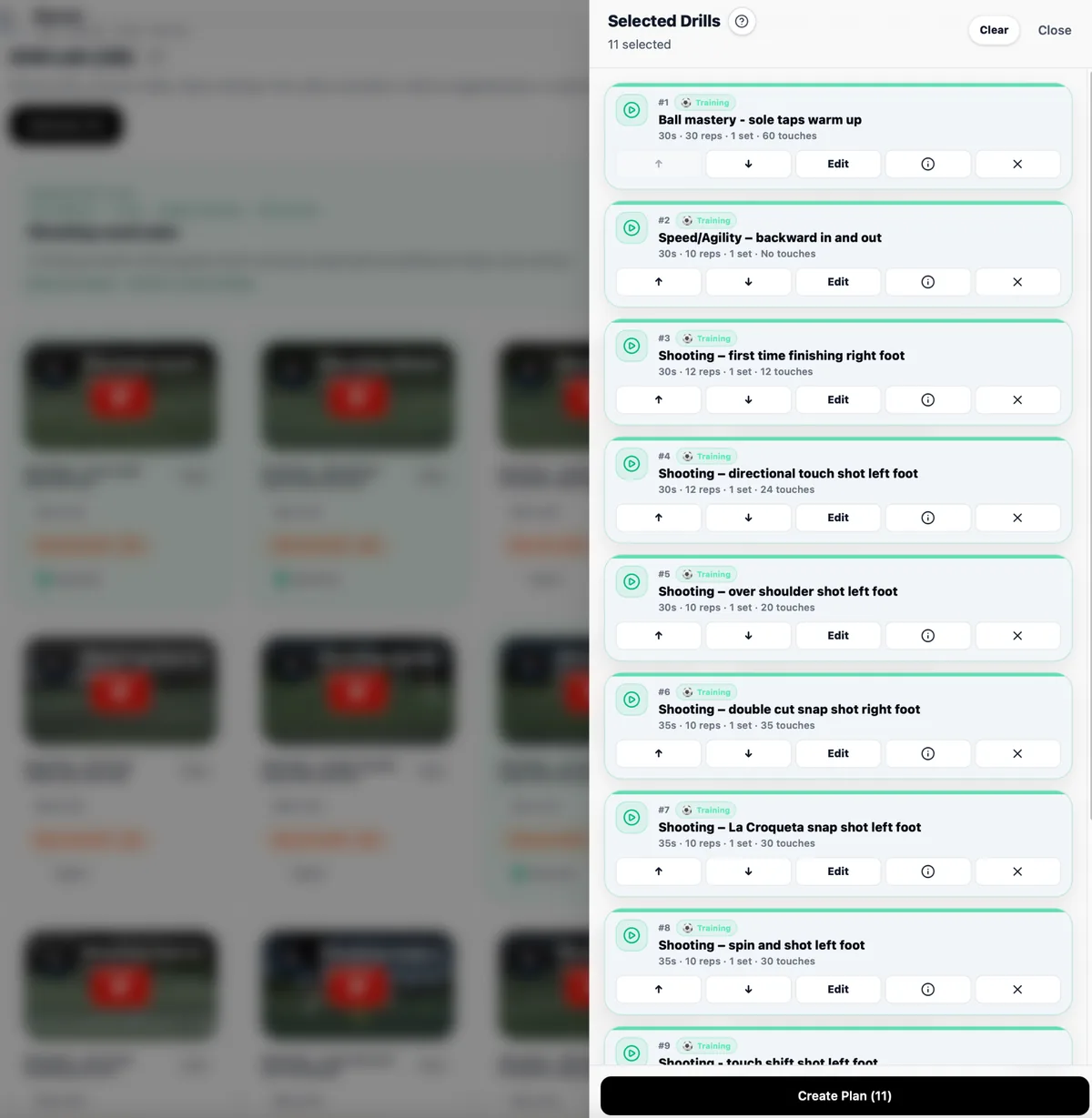 Clipboard drawer
The Clipboard displays all drills currently selected for your training session.
Clipboard drawer
The Clipboard displays all drills currently selected for your training session.
For each drill, you can view:
- Drill name
- Training target
- Duration
- Repetitions
- Sets
- Ball touches
- Drill order
This gives you a complete overview of the session before it becomes a plan.
Reordering Drills
Training sessions are often most effective when drills follow a logical progression.
Within the Clipboard you can move drills into your preferred order.
A common structure is:
- Warm-up
- Technical training
- Main training focus
- Match-related exercises
- Recovery or cool-down
You can rearrange drills at any time before saving the plan.
Editing Drill Settings
Each drill can be customised to suit your training requirements.
Depending on the drill, you may be able to adjust:
- Duration per set
- Repetitions per set
- Number of sets
- Ball touches
These changes apply only to your plan and do not modify the original drill in the iSoccer library.
Understanding Ball Touches
Some drills include an estimated number of ball touches.
Ball touches help:
- Measure session intensity
- Track technical workload
- Improve training statistics
If known, enter realistic values for better reporting and long-term progress tracking.
Removing Drills
If you decide a drill is not suitable:
- Open the Clipboard.
- Locate the drill.
- Remove the drill from the session.
Removing a drill from the Clipboard does not remove it from the iSoccer drill library.
Building Effective Sessions
When creating a session, consider:
- Training goal
- Player age
- Skill level
- Available training time
- Recovery requirements
Avoid adding too many drills to a single session, especially when first starting out.
A shorter, focused session is often more effective than an overly long one.
Before Saving Your Plan
Before creating a plan, review:
- Drill order
- Duration settings
- Repetition settings
- Ball touches
- Overall session length
Making small adjustments at this stage can greatly improve the quality of your training session.
Tips for New Users
- Start with 5–10 drills.
- Include a warm-up and cool-down.
- Keep your first session simple.
- Focus on one primary training goal.
- Use realistic durations and repetitions.
As you gain experience, you can create longer and more advanced training plans.
Next Step
Once your Clipboard is ready:
- Enter a plan name.
- Set your training schedule preferences.
- Save the plan.
You are then ready to begin your first guided training session using iSoccer.